As an Amazon Web Services professional working on projects for multiple customers I need an easy way to login to their many AWS accounts through the web console.
Since I use LastPass for storing my website passwords it’s only logical to use it for AWS logins as well. The problem is that there are 3 login fields – Account, User Name and Password – instead of the usual 2. LastPass has support for filling the additional field however it may not be entirely obvious. Follow these steps…
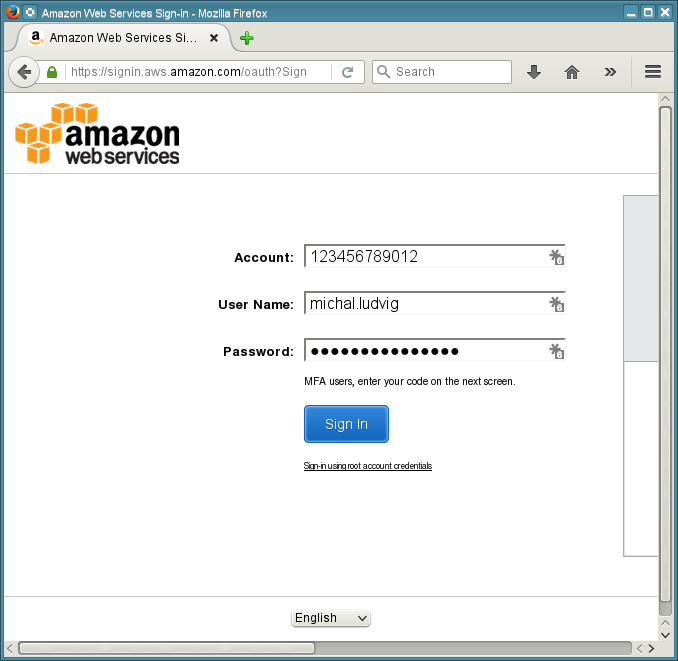
Open the login screen and fill in your details
Either go to https://123456789012.signin.aws.amazon.com/console (replace 1234..12 with your account ID or alias) or navigate through https://aws.amazon.com/ ➞ My Account ➞ AWS Management Console. You will land on the familiar screen where you fill in the login details:
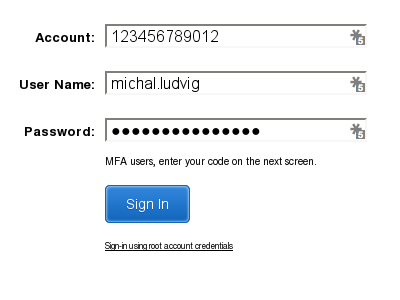
Sign In
Green LastPass notification bar will pop up asking if you would like to save a new site.
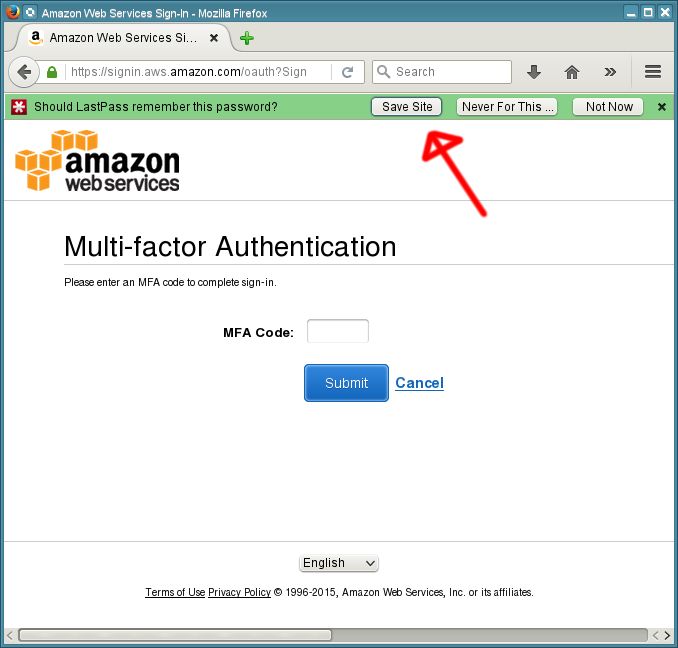
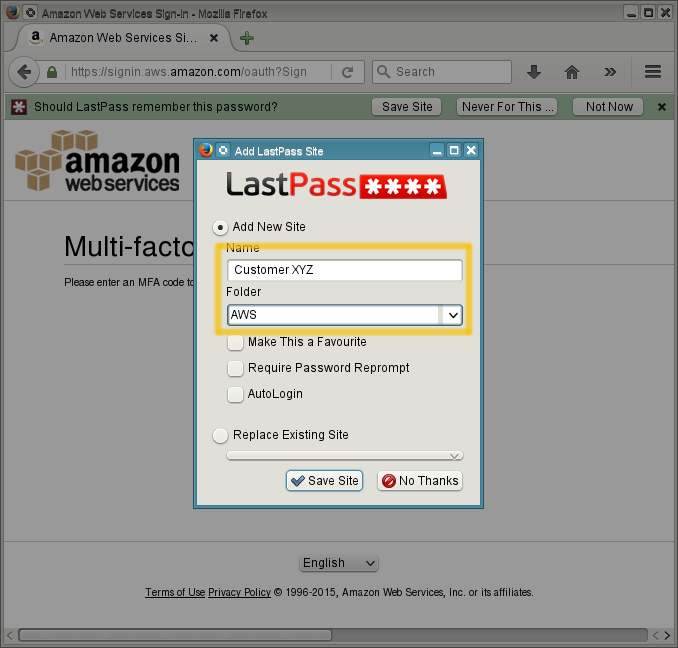
Click Save Site and give the account a descriptive name – typically a Customer name, Project name, whether it’s a Development, Test or Production account, etc. I also keep all AWS credentials in a dedicated LastPass folder (e.g. AWS in this case). Just type “AWS” and the folder will be created for you automatically.
Try it
Open a blank login screen again and – here is the trick – click on the LastPass star-icon in the User Name field, not in the first Account field!
If you click in the Account field LastPass will put the username in both the Account and User Name fields. This actually took me a while to figure out 🙂
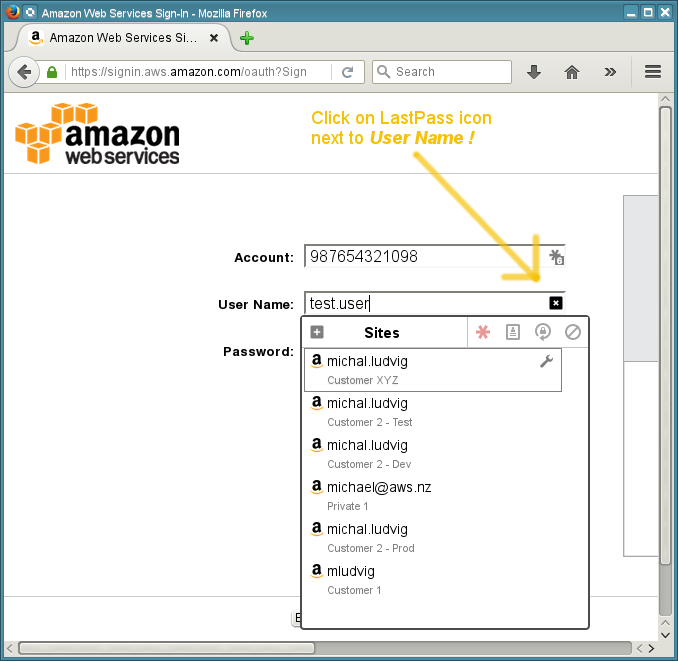
Select the new account and voilà – all three fields are filled in. This is especially handy for accounts that don’t have a verbose alias created and only use the default 12-digit account name.
The saved credentials are now available through all your LastPass plugins – in Firefox, Chrome, IE and also in their Private modes which makes operating multiple accounts concurrently much easier.
Dig deeper
You may wonder how does LastPass remember the Account ID when its database typically only keeps track of usernames and passwords. The answer is behind the link “Edit Form Fields” near the bottom right corner of the Edit dialog.
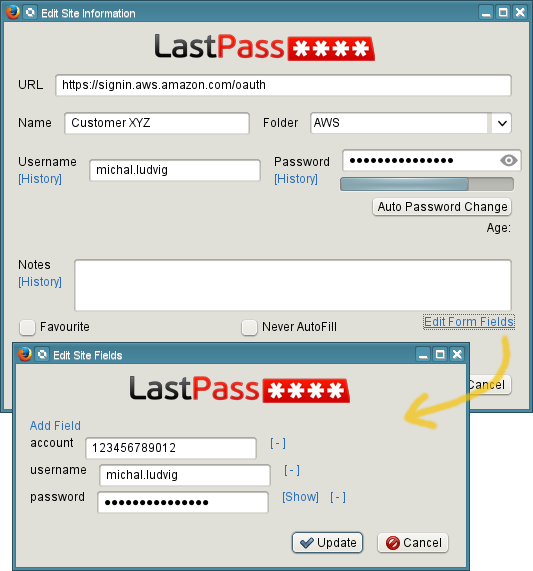
There they are – account, username and password fields ready to be used. This way you can populate even more complex forms.