
Photo by The New York Public Library on Unsplash
It’s a Tax time again here in New Zealand. When I was putting together the documents for my accountant last week, I wanted to export some account statements from my bank to CSV.
Surprisingly I realised that it could be done for most of my accounts except for one — the mortgage loan account. The bank helpline confirmed that CSV export is not possible, and the only option is to download the monthly statement PDFs and re-type them to Excel manually. Wait! What? Why? Come on! It works for all my other accounts, why not for the mortgage one?!
The prospect of spending an hour copying and pasting numbers from PDFs to Excel made me think that there must be a better way!
Amazon Textract
Amazon Textract is a service that can extract text and layout information from images and PDFs. Not only it can extract the actual text like any other OCR tool. It also aims to understand the document layout — identify columns, forms and tables.
That’s promising, that’s what I need. Let’s run the account statement through Textract and see what comes out.
The easiest and cheapest operation is a simple Text Detection, similar to what any decent OCR or PDF-to-Text tool can do that.
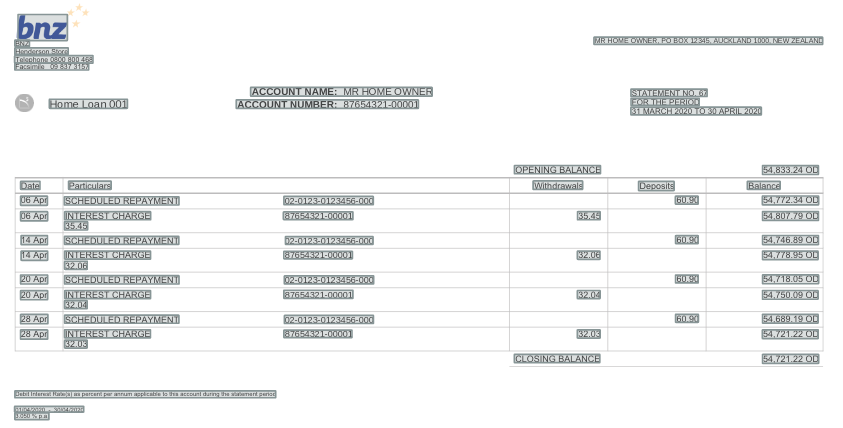
Simple text detection
Forms, Tables and filtering by Location
Where Amazon Textract excels and adds value is in understanding the document layout. Very often, PDF documents are structured in a certain way. For example, my bank statements show some information about the account owner, account number, statement period, and most importantly, the list of transactions.
Understanding the document layout, tables, forms, and so on, it’s called Document Analysis in Textract. Unfortunately, it is a bit more expensive than the simple Text Detection above, refer to the Textract pricing page for details.
The results of Document Analysis give us not only a list of detected words but more importantly, the relationship between them. Whether the information we need is in a Form, a Table or at a fixed Location on the page we can now retrieve it from the bank statement and process it all in a structured way.
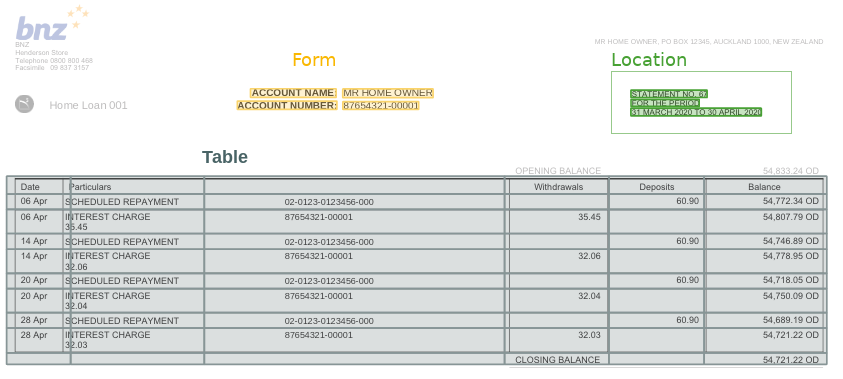
Structured data extraction
The above image was created by manually uploading the PDF file to the Textract console — great for testing but not very scalable. Now that we have verified that Textract works for us, we can automate the process.
Textract API and Step Functions
Pretty much everything in AWS has an API and Textract is no different. The two main API calls are for text detection and for document layout analysis, each in a synchronous and asynchronous version.
Because we are analysing PDF files we must use the asynchronous calls: StartDocumentAnalysis() and GetDocumentAnalysis() that read the files from an S3 bucket. If we were processing JPEG and PNG images we could use the synchronous AnalyzeDocument() call that can be called with the image data directly. Unfortunately, it doesn’t work with PDF files at the moment due to the limitation of the service.
Since we have to upload the files to S3 anyway we can just as well create some automation that will kick off the analysis as soon as a new PDF is uploaded. A good option is a Step Function State Machine triggered by S3 PutObject events — it will help us orchestrate the asynchronous Textract calls.
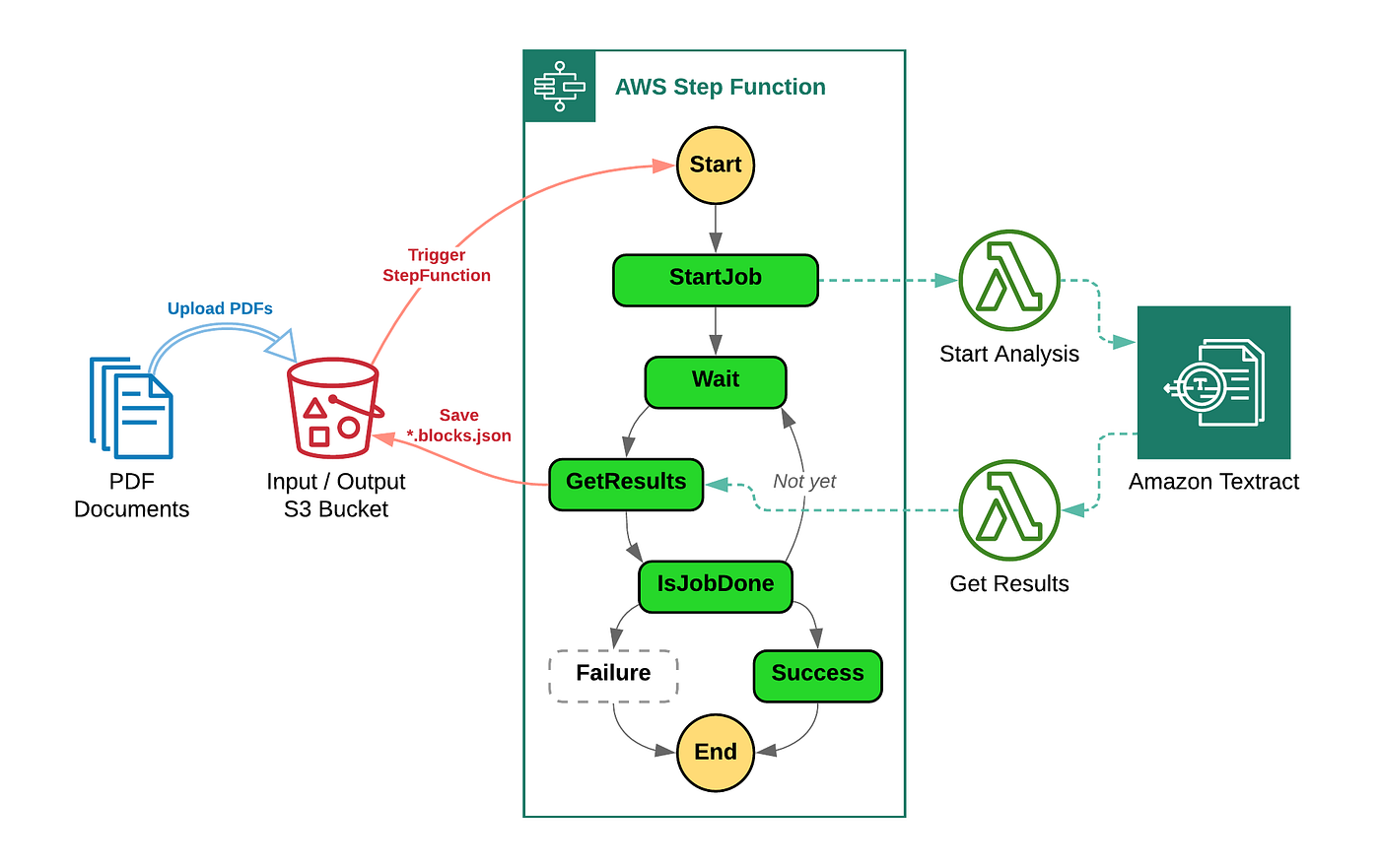
AWS Architecture
Because we are good AWS citizens we won’t go wild clicking around the console to create these resources manually. Instead, we will use a CloudFormation template to stand up the complete infrastructure depicted above — S3 Bucket, Lambdas, Step Function, IAM Roles, and the S3 event notification infrastructure which is quite convoluted as it requires a custom CloudTrail event bus. Don’t worry, it’s all part of the template.
Check out my Amazon Textract with Cloudformation GitHub repository for details.
In the next part, we will show how to work with the data returned from Textract. Unfortunately, it’s not as trivial as you may expect. Continue to Part 2.