I’m being asked the same question over and over again:
I got locked out of my EC2 instance! I did “something” and now I can’t SSH to it. How do I fix that?

Photo by Jonathan Rados on Unsplash
Usually this happens during server hardening or some other “fixing the server” attempts gone wrong. From turning on the iptables firewall without leaving port 22 open, through changing some file or directory permissions, to right out messing up the SSH daemon configuration.
~ $ ssh ec2-user@broken-instance
ec2-user@broken-instance: Permission denied (publickey,gssapi-keyex,gssapi-with-mic).
Whatever you’ve done that rendered the instance inaccessible has to be undone. But how when you can’t log in?
Option 1 — Systems Manager interactive session
Systems Manager (SSM) is a modern, non-SSH way to access your instances. Using Systems Manager Interactive Session you can login to the EC2 instance even if SSH is broken and fix whatever needs to be fixed.
SSM needs an agent running on the instance and the agent must be able to connect to an Amazon SSM endpoint, both from the network connectivity perspective as well as from the IAM permissions perspective.
The potential problem is that the SSM agent must be installed before you lose access to the instance. Newer instances running Amazon Linux 2 or Ubuntu 18.04 or newer should have it installed and running by default.
Open it through the top-level Connect ⇨ Session Manager menu. Don’t be alarmed if it fails at first — you may not have it configured properly. Fortunately that may still be done even without access to the instance.
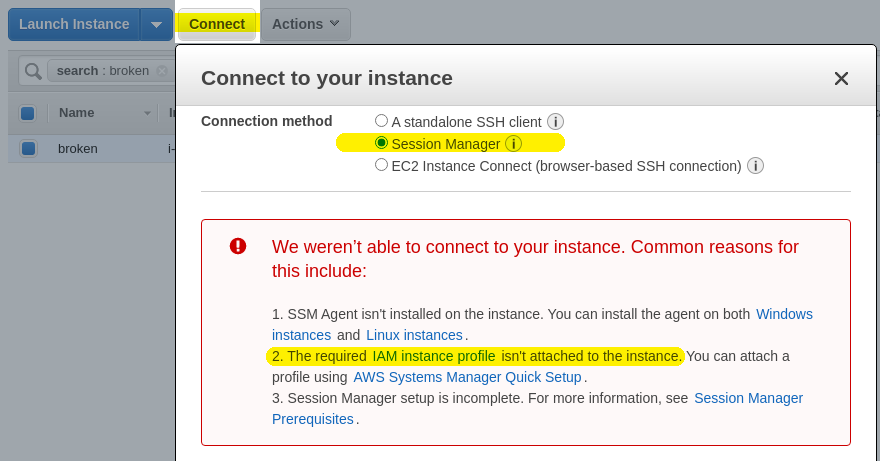
If the broken instance is reasonably new, e.g. running Amazon Linux 2 or Ubuntu 18.04, it should already have SSM agent installed and running. However it may not have the required IAM permissions to connect to Amazon — but there’s an easy fix.
- Create an IAM Role for the EC2 instance
- Attach the AmazonSSMFullAccess policy to the IAM Role
- Attach the role to the EC2 instance
- Wait up to 30 mins before the SSM agent on the instance re-tries to connect. Or reboot it to trigger the re-try.
More information can be found in AWS Systems Manager Quick Setup.
Once the permissions are sorted you can open an interactive shell over Systems Manager Session through the Connect ⇨ Session Manager button and from there fix the problems that rendered SSH unusable.
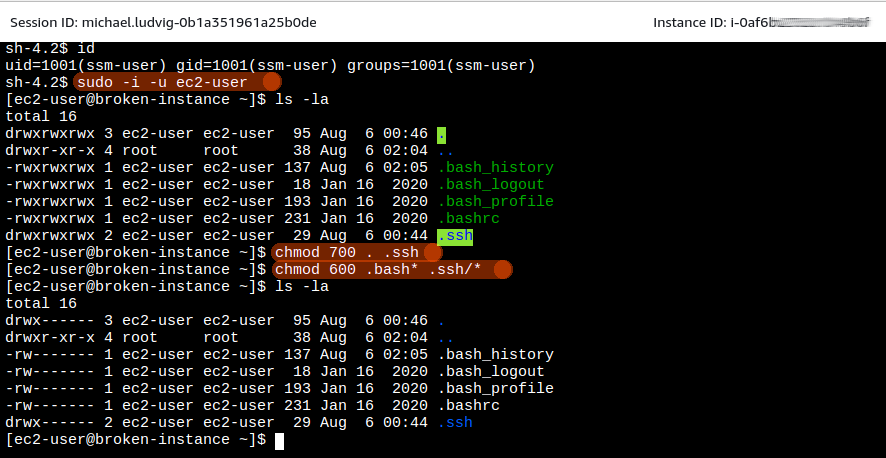
Use SSM Sessions instead of SSH anyway
In fact I suggest you use SSM Sessions instead of SSH going forward. There is a number of benefits:
- No need to have inbound connectivity to the instances. All that is needed is the outbound connectivity to AWS SSM endpoint.
That means no need for SSH port open in the Security Group, no need to have public IP on the EC2 and no need for a jump host / bastion host. - No need to worry about distributing SSH Keys (aka Key Pairs) — SSM uses dynamic IAM permissions.
- With the right tools (ssm-session) it works well in dynamic auto-scaling environments where the actual instance IP may frequently change. Check out SSM Sessions the easy way for more details.
Option 2 — use a “helper” instance
This is the traditional way to fix things, albeit more complicated. However it comes handy when SSM is not available or the instance is in such a bad state that it won’t even boot.
Using this method we temporarily spin up another instance and use it to fix the issues on the broken one.
Here is the step-by-step process:
- Take a snapshot / create AMI of the affected instance, just in case.
- Stop the instance but don’t terminate it — terminating would destroy it, we want to recover it.
- Note down its root EBS volume name, e.g.
/dev/sda1or/dev/xvda
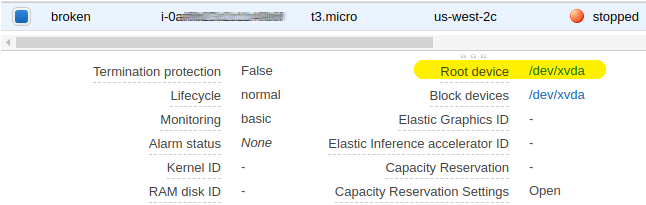
- Detach the root EBS volume from the broken instance
- Spin up another EC2 instance — “helper instance”. Ideally with the same OS as the broken one has (e.g. Amazon Linux 2, or Ubuntu 18.04, etc) for compatibility. Any instance size will do, for example t3.nano. Make sure you can SSH to it.
- Attach the detached broken volume as a second disk to the running instance. It will show up as a new disk.
Usedmesg | tailorsudo fdisk -lto find out the second disk device name — in newer systems it may be/dev/nvme1n1or/dev/xvdfor something like that.
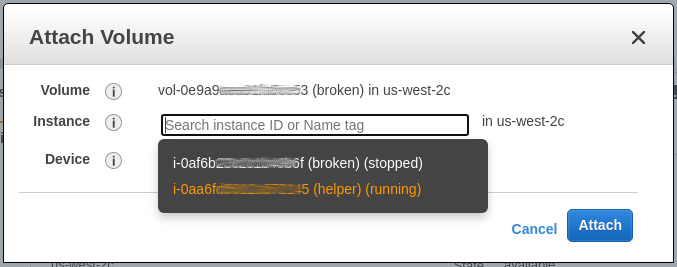
- Mount it with
mount -o nouuid /dev/nvme1n1p1 /mnt
Thenouuidoption may be necessary if both the broken instance and the helper instance have been created from the same AMI in which case their root disks may inherit the same UUID and themountfails with an error like this:XFS (nvme1n1p1): Filesystem has duplicate UUID 9365dfe6-d038-4ca5-b9c2-a63f764c5b73 — can’t mount. Thenmount -o nouuidhelps to work around it. - Fix what needs to be fixed — the iptables configuration, the broken file permissions, the
sshd_configfile settings, free up disk space, etc.
IMPORTANT: Remember that the broken disk is now mounted under/mntso your home directory is/mnt/home/ec2-user, the system configs are under/mnt/etc, logs under/var/log, and so on. - Shut down the helper instance (or just unmount /mnt) and detach the affected volume.
- Re-attach it back to the original instance under its original name, e.g.
/dev/xvdaor/dev/sda1. Make sure you get this one right or the instance won’t boot!
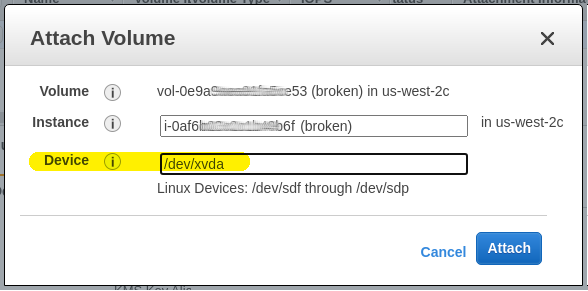
- Start it and test — if you fixed all that was broken you should now be able to SSH to it. If not repeat the steps above until it works.
Recovering data from a non-booting instance
This same process can be used to salvage valuable data when the broken instance is beyond repair and won’t even boot, for example if you ran chmod -R 777 / to “fix” permission issues or if you “super-hardened” the instance by removing SUID bit from all the files or done something similarly destructive.
In such a case simply stand up a new instance that replaces the broken one, attach the broken volume to this new instance, copy out the valuable files (e.g. your website files, images, database files), detach the broken volume and keep using the new instance as a replacement for the old one.
Don’t break your EC2 instances :)
By now you should have access to your instance again. But as always it’s best to not break it in the first place and also have automated backups on hand for easy restoration if everything else fails. More on that at some other time.